Home/Resources/Email Tracking Guide

How email tracking worksHow email tracking works

Learn what tracking pixels and links record. Understand how privacy services and scanners affect the results.

Start tracking freeSee how it works
Free plan. No credit card needed.
A tracked message in the Elite Mail Works dashboard with its summary, recipient context and timeline of opens and clicks
  • What is recorded

    A request for a tiny image or a tracked link. Nothing inside the recipient's mailbox is read.

  • What changes the picture

    Privacy proxies, security scanners, image blocking and your own views

  • How to use it well

    Treat activity as context for a follow-up, never as proof that someone read

Why it mattersHow it worksGet startedUse casesGood to knowQuestions

The short answer

Email tracking records requests, not reading

An email tracker adds a small image and rewrites links so that opening the message or clicking a link makes a request to a server. Everything a tracker reports is an interpretation of those requests.

Common assumptions

  • “Opened” means readAn image can load in a preview pane or be fetched by a mail service before anyone looks.
  • No open means ignoredMany people block images. They may have read every word.
  • Every click is a personSecurity tools follow links automatically to check them.

What is actually true

  • An open is an image requestIt shows the message was displayed or prefetched by some client.
  • A click is stronger evidenceA tracked link was requested, usually by a person, sometimes by a scanner.
  • Classification mattersA good tracker tells you which requests look human and which are automated.

How it works

How to read email tracking

The mechanism, the sources of ambiguity, and a practical way to act on what you see

01The mechanism

Read the signal before you act

Learn how pixels and tracked links create activity, what automated requests mean, and how to follow up with useful context

  • Tracking pixel. A 1×1 image unique to the message. Loading it records an open.
  • Tracked link. The link passes through a redirect that records the click, then forwards to the destination.
  • Timestamp and client. Each request carries a time and basic information about the app that made it.
  • No content from the recipient's mailbox is read at any point

02Reading events

Start with what actually happened

A tracking event records a request for an image or link. Read the events in order, check their classification, and use repeated activity as context for your next conversation.

  • Read them in order. Sent, opened, clicked, returned.
  • Check the label. Likely human, privacy protected, scanner or sender.
  • Look for repetition. Several visits over days tell you more than one.
  • The 09:12 request arrived seconds after sending: a privacy service, not a person
  • The 10:16 open and the click two minutes later are the events worth acting on
Timeline of a tracked message in the Elite dashboard listing each open and click with its classification, device and time

03Privacy and scanners

Privacy services and scanners change the picture

Some email clients fetch images before a person opens the message. Security tools may follow links automatically. Keep these requests separate when assessing engagement.

  • Apple Mail Privacy Protection. Images are fetched in advance through Apple's servers.
  • Gmail™ image proxy. Images are served through Google, which hides the reader's location.
  • Security scanners. Corporate filters open links automatically to check for threats.
  • Classifications are estimates. Unrecognized automation can remain uncertain.
Engagement funnel from tracked deliveries to opens and clicksSignal mix showing likely-human, privacy-protected and security-scanner activity

04Step by step

How to track an email in Gmail™, Outlook or Yahoo Mail

Tracking is added when you send. You keep writing in your own inbox, and activity appears beside the message afterwards.

  • Install the extension or add-in. Chrome, Edge and Firefox for webmail. An add-in for Outlook.
  • Compose as usual. Leave tracking on for the messages you want to follow.
  • Check your sent mail. Checkmarks and the timeline show recorded activity.
  • One switch in compose controls tracking for the message

Install Elite Mail Works

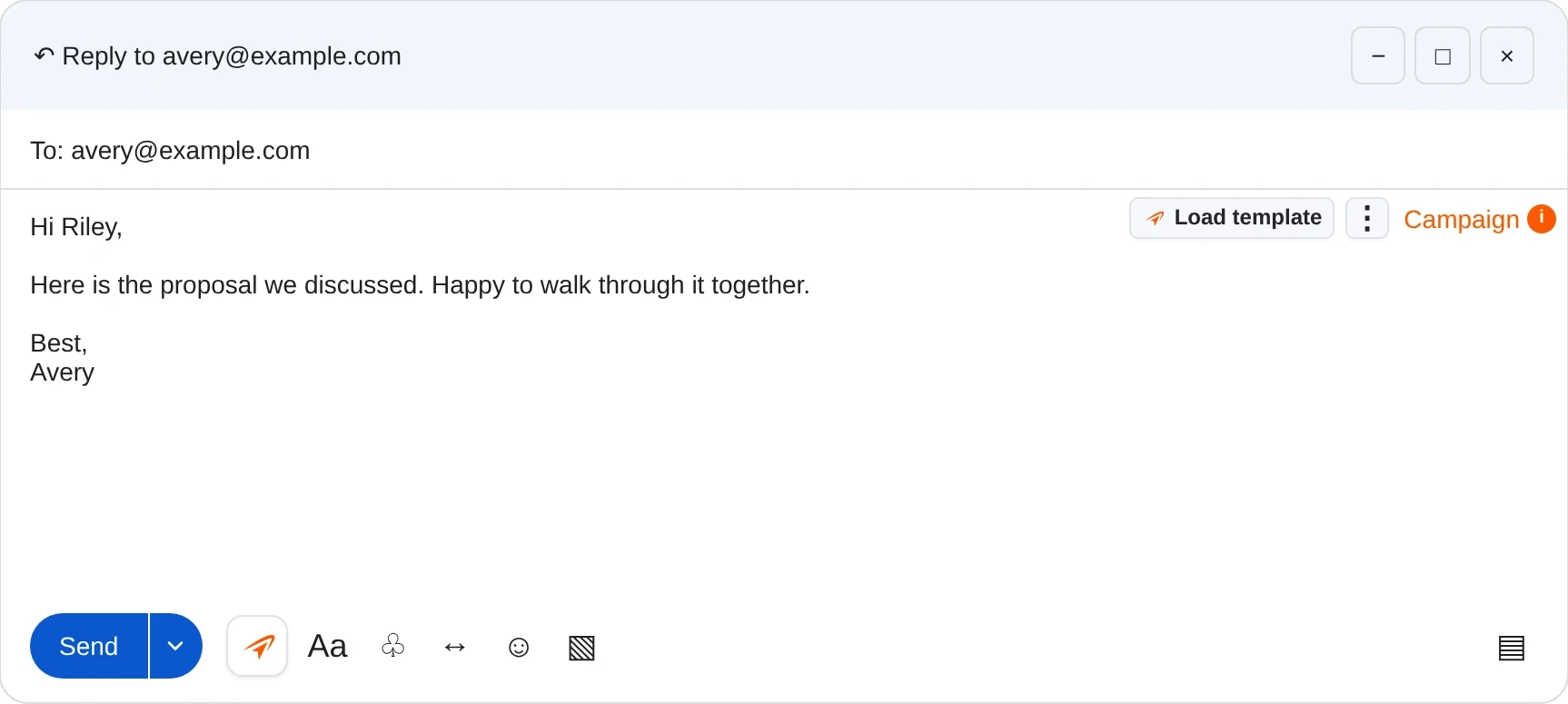
Gmail™ compose window with the Elite toolbar and the tracking control beside Send

05Responsible use

Follow up like someone who was not watching

The most useful rule in email tracking is to let the data choose your timing, not your wording. Nobody wants to be told their opens were counted.

  • Say something useful. Offer the next step, not a report on their behaviour.
  • Combine signals. Weigh activity alongside replies, deadlines and the relationship.
  • Know your obligations. Privacy law, employment policy and professional duties can limit how tracking is used.
  • A good follow-up is relevant and well timed. It never mentions that the email was opened.

Get started

Start with one email that matters

Connect your inbox, send a tracked message, and return to its activity before you follow up

  1. Start with the mechanism

    Understand what pixels and tracked redirects request over the network

  2. Learn the sources of ambiguity

    See how blocking, caching, proxies, scanners, forwarding, and self activity change the event

  3. Read classifications instead of raw totals

    Keep likely-human, privacy-protected, scanner, sender, and unknown activity separate

  4. Apply a responsible follow-up

    Use tracking as one piece of context alongside replies, deadlines, and the relationship

Free plan. No credit card needed.

Start tracking freeSend your first tracked email

Use cases

Where it fits into your work

01

Evaluate an email tracker

Ask whether it exposes classification and attribution instead of promising perfect reads

02

Explain a surprising open

Recognize that a proxy or scanner can request content before a person intentionally reads

03

Set team norms

Agree on respectful language and acceptable uses before sharing tracking across a team

What's included

  • Tracking pixels
  • Link redirects
  • Apple privacy
  • Security scanners
  • Self opens
  • Recipient privacy

Good to know

What no tracker can tell you

We would rather you trust Elite than be surprised by it. These are the boundaries worth knowing before you rely on it.

Security and privacy at Elite

  1. No email tracking system can prove comprehension or intent from an image or link request
  2. Privacy laws, consent rules, employment policy, education policy, and professional duties can affect whether and how tracking should be used

Keep going

Works better together

Every Elite feature shares the same contacts, messages and history, so the next step is already in context

Elite Email Tracker

See opens and clicks with context about automated activity

Explore

Tracker Blocking

See and block hidden email trackers

Explore

Email Analytics

See your email activity in one clear dashboard

Explore

Questions

Email Tracking Guide FAQ

Answers about setup, compatibility, privacy, and day-to-day use

Visit the help center

How do I track an email from setup to follow-up?

First, install or connect the Elite integration for your supported email app. Next, compose a message and confirm tracking is enabled before sending. Then review the message's recorded opens and link clicks, including the activity labels. Use replies and the context of your conversation to decide whether to follow up; no recorded open does not mean the message is unread. Find setup for your email app. Explore email tracking.

How does email tracking work?

Open tracking uses a small image with a unique URL. When an email app requests that image, the tracker records the request. Tracked links record a separate event when their redirect is requested. Image blocking can prevent an open event, while caching, privacy proxies, and security scanners can create or obscure activity. Neither an image request nor a click proves who read the message or understood it. Read the privacy policy.

Can security scanners generate link clicks, and how does bot filtering affect my reports?

Yes. Email security tools can visit a tracked link before the recipient does. Elite classifies likely-human clicks separately from detected scanner and prefetch requests; likely-human clicks contribute to click rate. Privacy-protected, scanner, sender, and unknown signals do not count as likely-human opens. Raw activity and filtered engagement can therefore differ. Filtering is an estimate: an unrecognized bot can still look human, and a click does not prove who read the email. Understand tracked clicks. See classifications and metric limits.

Can I track an email attachment?

Email open tracking does not tell you whether a normal attached file was opened. To review document viewing activity, upload the file to Elite's document workspace and send a tracked sharing link instead. The report covers activity in the hosted viewer and available download events; it does not track later use of a downloaded copy. See how document tracking works.

Can ChatGPT or Claude send tracked emails and check opens through Elite MCP?

A compatible ChatGPT or Claude client can connect to Elite Mail Works through remote MCP with OAuth. With the required plan, scopes, and product permissions, it can prepare a fresh tracked email and inspect available Elite open and click activity. Sending requires the confirmation configured for the connection. Client support depends on the app, plan, and organization settings. Elite's Gmail cloud connection is send-only: it cannot read your Gmail inbox or detect native replies and bounces. Gmail mailbox work needs a separate supported connection in your AI app. Set up ChatGPT or Claude with Elite MCP. Explore AI email actions. Check plan availability.

Can a pixel prove someone read my email?

No. It proves that the pixel URL was requested under the recorded conditions.

Why did an email open immediately?

A provider proxy or security scanner may have fetched the image or inspected a link during delivery.

Why is there no open?

The recipient may have blocked images, read offline, used a privacy tool, or received the message through a gateway that cached the content.

Are clicks always human?

No. Link scanners can request URLs. Click events should be classified just like pixel events.

Get started

Bring your next step into Elite

Learn how email tracking really works

Start tracking freeCompare plansView all features
Elite Mail WorksElite Mail Works
Email TrackerWorkflowsSolutionsPricing
Log inStart free

Tracking

Elite Email TrackerFollow-up RemindersEmail Analytics

Outreach

CampaignsMail MergeEmail TemplatesVideo Messages

Requests & documents

Document RequestsVideo RequestsSignature RequestDocuments overviewDocument TrackingSecure Document SharingConfidential Watermark

Workspace

CRM for EmailTracker BlockingWorkflowsIntegrationsAI connections

Get Elite Mail Works

Chrome ExtensionEdge ExtensionFirefox ExtensionGmail™ Mobile Add-onOutlook Add-iniPhone & iPad AppAndroid App

Resources

BlogSign PDF OnlineSignature StudioEmail signature templatesGmail™ signature generatorOutlook signature generatorVideo RecorderEmail Tracking GuideWorkflow ExamplesTutorialsCustom EmailFAQs & Help CenterComparisons
View all features
Product
Elite Email TrackerFollow-up RemindersEmail AnalyticsCampaignsMail MergeEmail TemplatesVideo MessagesDocument RequestsVideo RequestsSignature RequestDocuments overviewDocument TrackingSecure Document SharingConfidential WatermarkCRM for EmailTracker BlockingWorkflowsIntegrationsAI connections
Download
Chrome ExtensionEdge ExtensionFirefox ExtensionGmail™ Mobile Add-onOutlook Add-iniPhone & iPad AppAndroid App
Resources
BlogSign PDF OnlineSignature StudioEmail signature templatesGmail™ signature generatorOutlook signature generatorVideo RecorderEmail Tracking GuideWorkflow ExamplesTutorialsCustom Email
WorkflowsSolutionsPricing
Log inStart free
Ask about Elite Mail Works on
Elite Mail WorksElite Mail Works
  • Download on the App Store
  • Get it on Google Play

Company

ContactAbout UsBrandingCareersPress

Features

Elite Email TrackerFollow-up RemindersEmail AnalyticsCampaignsMail MergeEmail TemplatesVideo MessagesDocument TrackingSecure Document SharingConfidential WatermarkSignature RequestCRM for EmailTracker BlockingDocument RequestsVideo Requests

Solutions

StartupsLawyers & AttorneysFreelancersHRTeachers & ProfessorsReal EstateMarketersSmall BusinessSales ProfessionalsAccountantsElite Mail Works for TeamsProposal Software

Download

Chrome ExtensionEdge ExtensionFirefox ExtensionGmail™ Mobile Add-onOutlook Add-iniPhone & iPad AppAndroid App

Resources

BlogSign PDF OnlineSignature StudioEmail signature templatesGmail™ signature generatorOutlook signature generatorVideo RecorderEmail Tracking GuideWorkflow ExamplesTutorialsCustom EmailWorkflowsDocuments overviewAI actionsIntegrationsEnterprisePricingFAQsComparisonsPrivacyTermsSecurity
  • Available in the Chrome Web Store
  • Add to Slack
  • Available on Microsoft Marketplace: Outlook add-in
  • Get it from Microsoft Edge
  • Get the Firefox add-on
  • Get it from Google Workspace Marketplace: Gmail add-on
  • Powered by AWS: system email delivery using Amazon SES
  • Protected by Cloudflare
  • Powered by Stripe: payment processing
  • elitemailsuite.com: green hosting through Cloudflare, checked by Green Web Foundation
  • Product HuntFind us onProduct Hunt

© 2026 Elite Mail Works. All rights reserved.

Gmail™, Google Workspace, Chrome, and Android are trademarks of Google LLC. Microsoft, Microsoft Edge, and Outlook are trademarks of the Microsoft group of companies. Yahoo and Yahoo Mail are trademarks of Yahoo Inc. Elite Mail Works is an independent product and is not affiliated with or endorsed by these companies.